Blur Photo Background Free — AI Does It in Seconds
Upload any photo and our AI instantly detects your subject — person, product, or pet — and blurs only the background. Get DSLR-style bokeh depth of field in under 5 seconds, free, with no watermark and no sign-up required.
What Makes ImgGen's Background Blur Different
Automatic subject isolation, four adjustable bokeh levels, and full-resolution output — all free, in under 5 seconds, with no software to install.
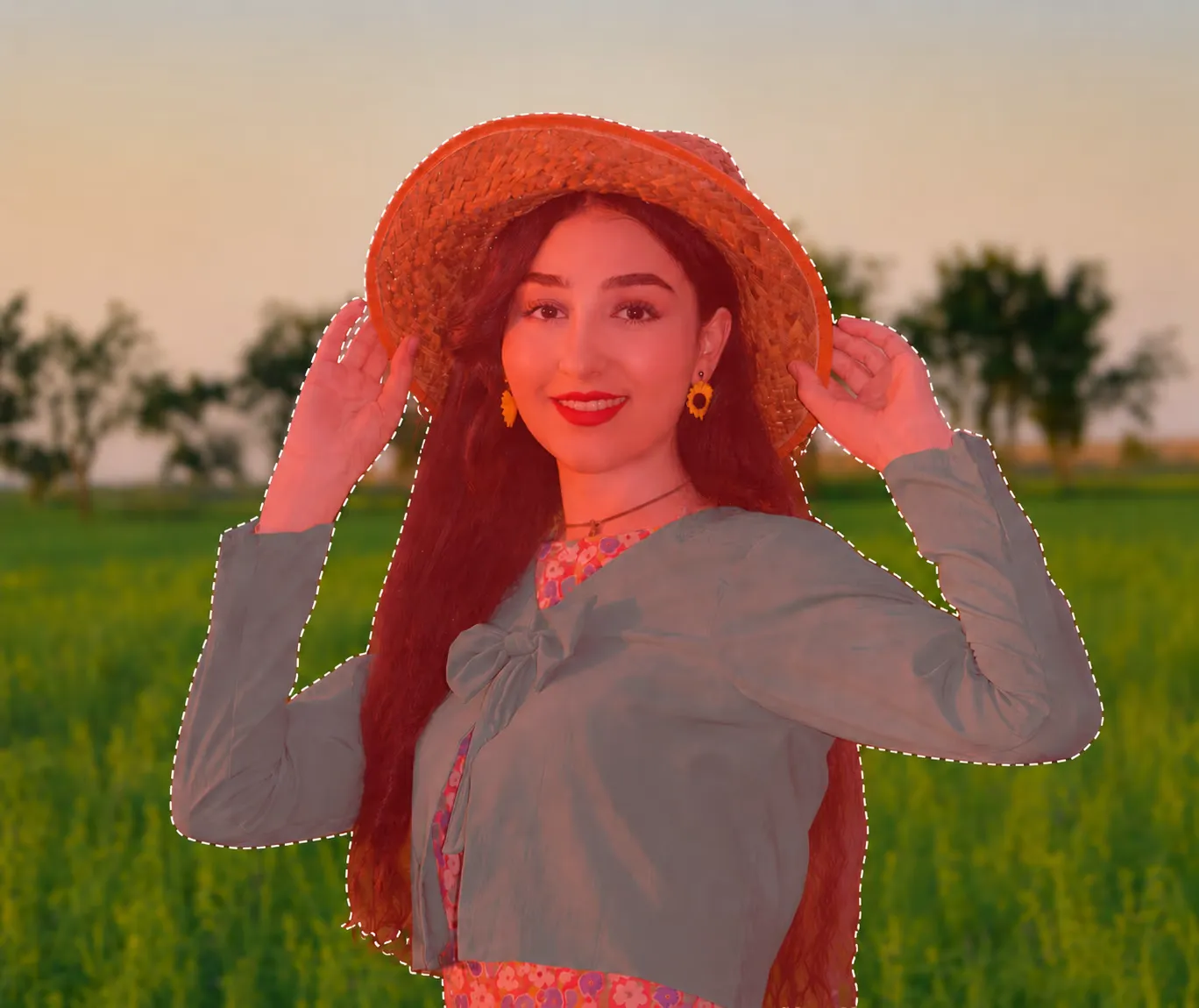
Smart Subject Detection
AI automatically detects your subject — person, product, or pet — and blurs only the background, keeping every detail of your subject pixel-sharp.
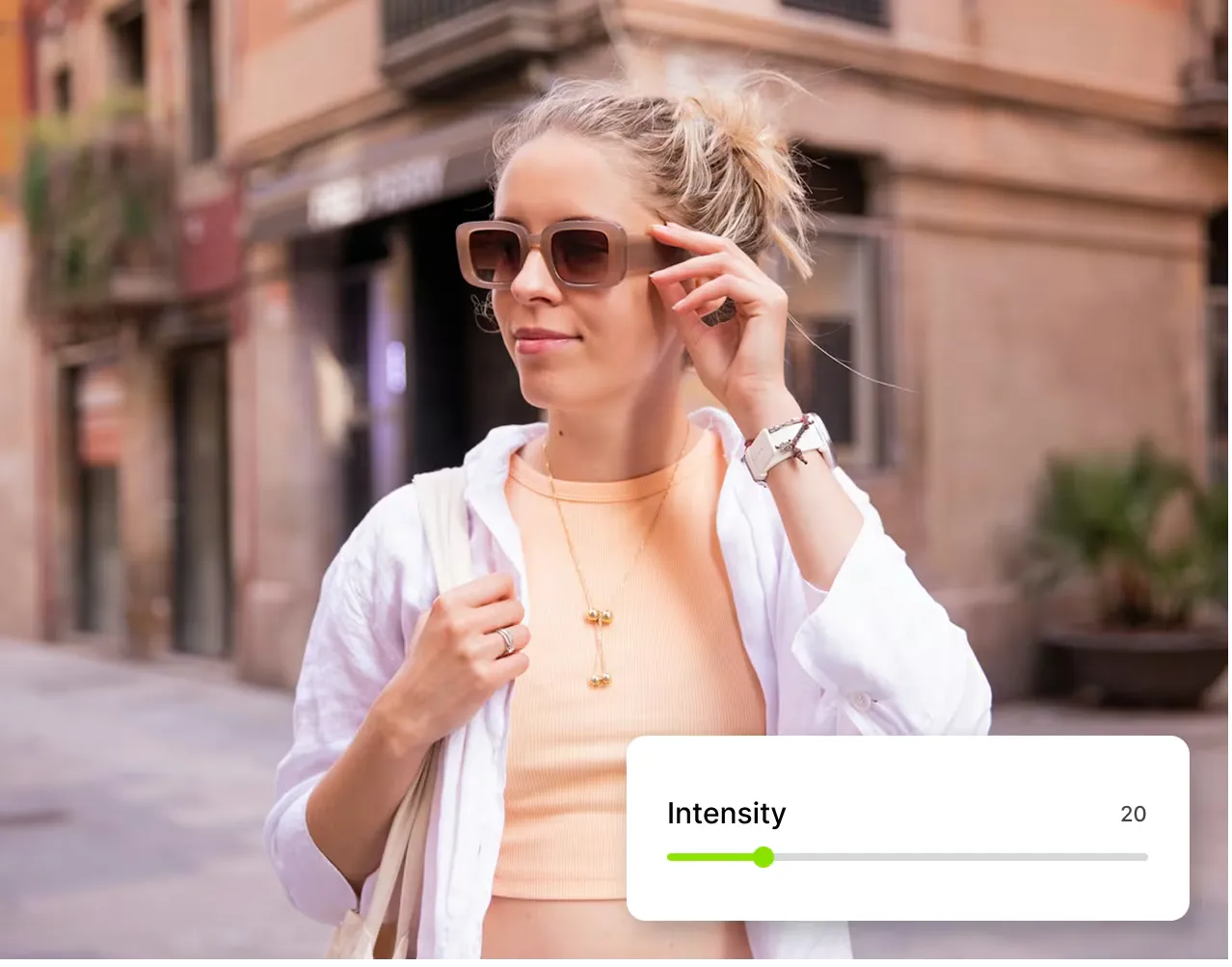
Adjustable Blur Intensity
Four preset intensity levels: Subtle (30%) for natural depth, Medium (60%) for classic bokeh, Strong (80%) for dramatic separation, Max (100%) for a dreamy cinematic look.
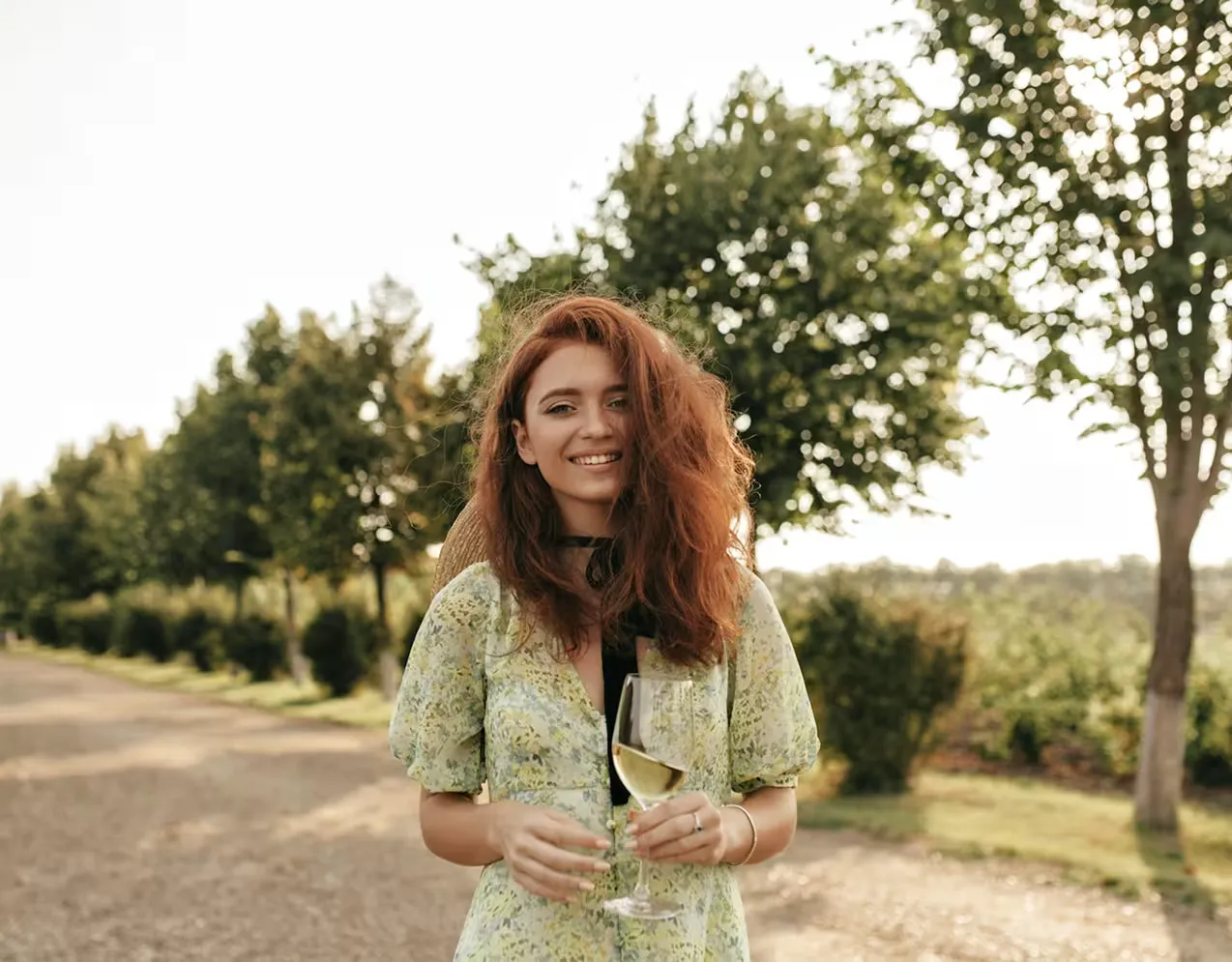
Full-Resolution Output
Download at full resolution with zero quality loss and no watermark. The same pixel quality as your upload — just with a professional, studio-style blurred background.
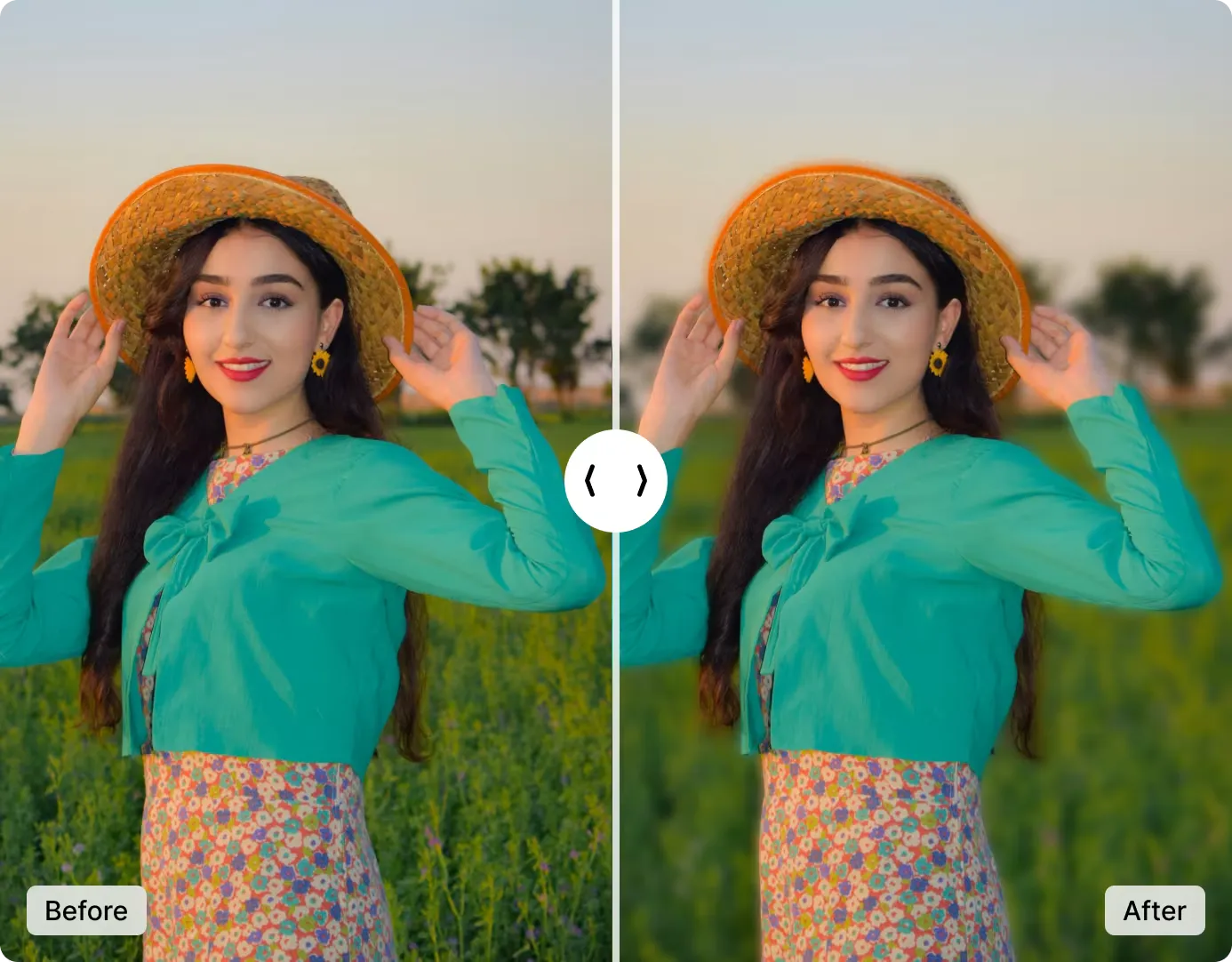
Precise Subject Isolation — Portraits, Products & Pets
ImgGen's AI automatically identifies and isolates your subject — people, products, pets, or objects — and applies a natural depth-of-field blur to only the background pixels. Your subject stays razor-sharp while the background softens into a professional bokeh effect.
No manual masking, no selection tools, no Photoshop subscription. Upload your photo and get studio-quality background blur in under 5 seconds — free, with no watermark or quality loss.
Blur My BackgroundFour Blur Intensity Levels — Full Creative Control
Choose from four preset intensity levels to match your creative vision: Subtle (30%) for natural-looking depth of field, Medium (60%) for classic portrait bokeh, Strong (80%) for dramatic subject separation, or Max (100%) for a fully cinematic, dreamy background.
Manual subject masking in Photoshop typically takes 10–20 minutes and requires layer skills most people don't have. ImgGen's AI detects edges and blurs in under 5 seconds — with no selection tools, no tutorials, and no subscription.
Try It Free Now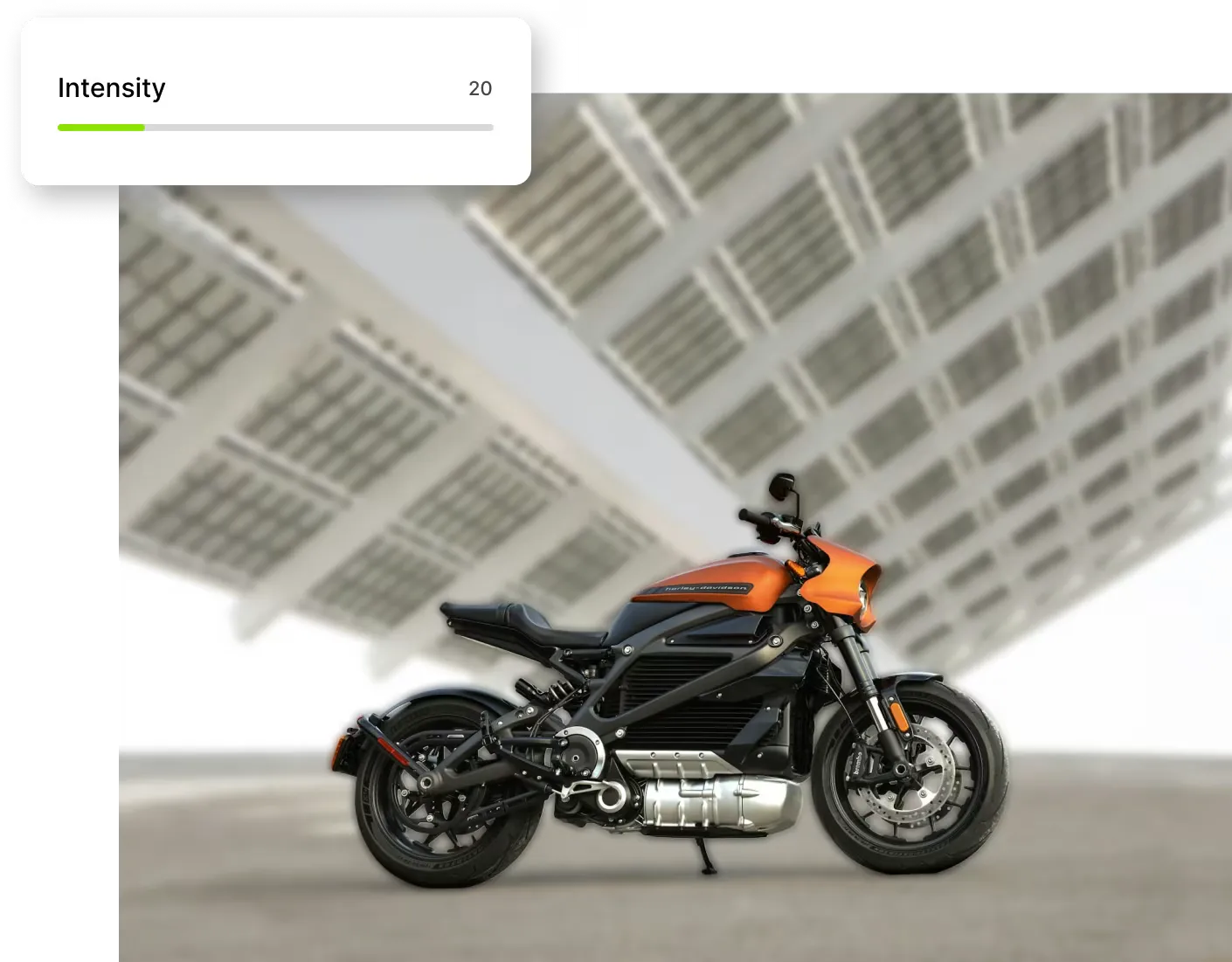


Background Blur API for Developers
Integrate ImgGen's Background Blur API into any photo app, e-commerce pipeline, or creative tool. Send an image URL and an intensity value (0–100); get back a blurred PNG in one REST call.
The API handles subject detection, masking, and bokeh rendering server-side — no CV library required in your stack. Suitable for batch processing thousands of product photos or real-time portrait mode in mobile apps.
Get API KeyWorks on Any Type of Photo
Portraits, products, pets, real estate — the AI adapts to whatever subject is in your image.
Portrait Photos
Isolate people from busy backgrounds. Perfect for LinkedIn headshots, dating profiles, and social media portraits.
Product Photography
Studio-clean backgrounds for e-commerce. Blur distracting backdrops to put 100% focus on the product.
Pet Photos
Keep pets sharp against blurred home interiors or outdoor scenes — ideal for Instagram and pet profiles.
Food Photography
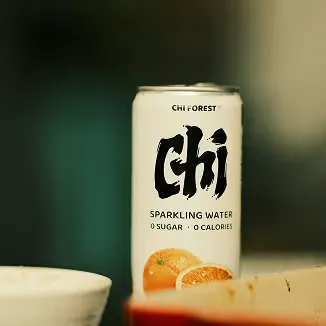
Blur cluttered table settings to make dishes pop. Create the shallow-depth-of-field look of professional food photography.
Real Estate
Soften distracting backgrounds in property photos to highlight architectural features and interiors.
Graduation & Events
Give event photos a professional finish by separating subjects from crowded venue backgrounds.
ImgGen AI vs. Other Ways to Blur a Background
See how AI background blur compares to Photoshop, phone portrait mode, and other methods.
| Feature | ImgGen AI | Photoshop | Phone Portrait Mode | Manual Editing |
|---|---|---|---|---|
| Works on existing photos | ✓ Yes | ✓ Yes | ✗ Capture-only | ✓ Yes |
| Time to blur background | Under 5 seconds | 10–20 minutes | Instant | 20–60 minutes |
| Adjustable intensity | ✓ 4 levels | ✓ Full control | Limited (some phones) | ✓ Full control |
| Requires software or app | ✗ Browser-only | ✗ $55/mo subscription | Built-in camera app | ✗ Software required |
| Works on product photos | ✓ Yes | ✓ Yes | ✗ People only | ✓ Yes |
| Free to use | ✓ 100% Free | ✗ Paid subscription | ✓ Free | Varies |
| Skills required | None | Advanced | None | Intermediate–Advanced |
How to Blur the Background of a Photo in 3 Steps
From upload to download in under a minute — no account, no software to install.
Upload Your Image
Drop your photo or click to upload. Supports JPEG, PNG, and WEBP up to 10 MB — portraits, products, and creative shots all work.
AI Detects & Blurs
The AI automatically detects your subject and blurs the background. Select Subtle, Medium, Strong, or Max intensity to dial in the exact bokeh look you want.
Download Full-Res Result
Download your image with a beautifully blurred background in full resolution — no watermark, no sign-up, ready to share or print instantly.
More AI Image Tools
Discover more free AI-powered tools to enhance your photos.